Additional Build Notes & Firmware Specs
You can use ESP32 S3 , with HID support or any other microcontroller with HID functionalities, without needing any python script!
 Arduino & ESP32
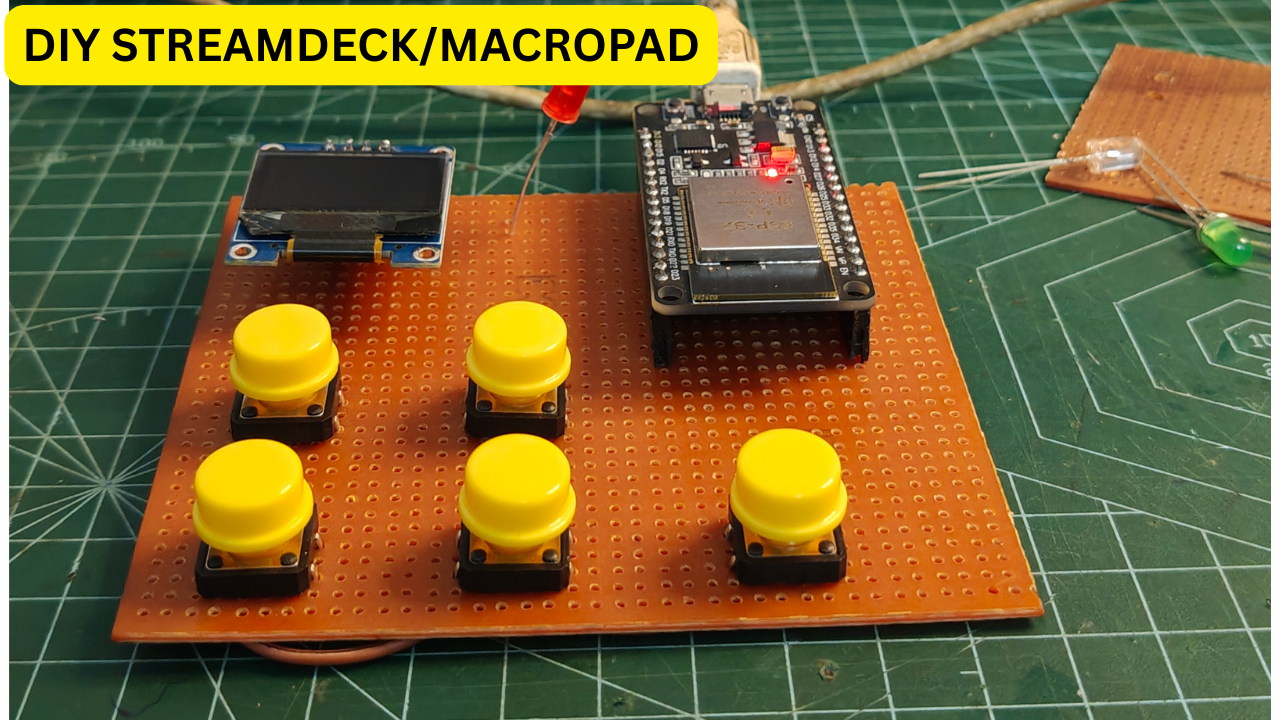
While gaming, streaming, or even working on creative software, we often rely on multiple keyboard shortcuts switching scenes in OBS, controlling volume, pausing media, or switching between applications. This constant switching between mouse and keyboard can break workflow and slow you down. That’s where a Stream Deck comes in. A stream deck is a programmable controller with multiple buttons that can trigger predefined actions like shortcuts, macros, or system controls with a single press. Instead of remembering complex key combinations, you simply press one button and the action happens instantly. However, commercial stream decks (like Elgato) are quite expensive, especially for students or beginners. So instead of buying one, I decided to build my own DIY Stream Deck using ESP32, keeping it: Low cost 💸 Fully customizable ⚙️ Expandable for future upgrades 🚀 This project uses an ESP32 to send commands via Bluetooth, and a Python script on the PC to convert those commands into actual keyboard actions.
 YouTube Video
Electronics: ESP32 Development Board (Bluetooth enabled) 5 × Tactile Push Buttons OLED Display (0.96” I2C – SSD1306 / SH1106) 3 × LEDs (Red, Green, Blue) 3 × 220Ω Resistors (for LEDs) Software: Arduino IDE/PlatformIO VScode
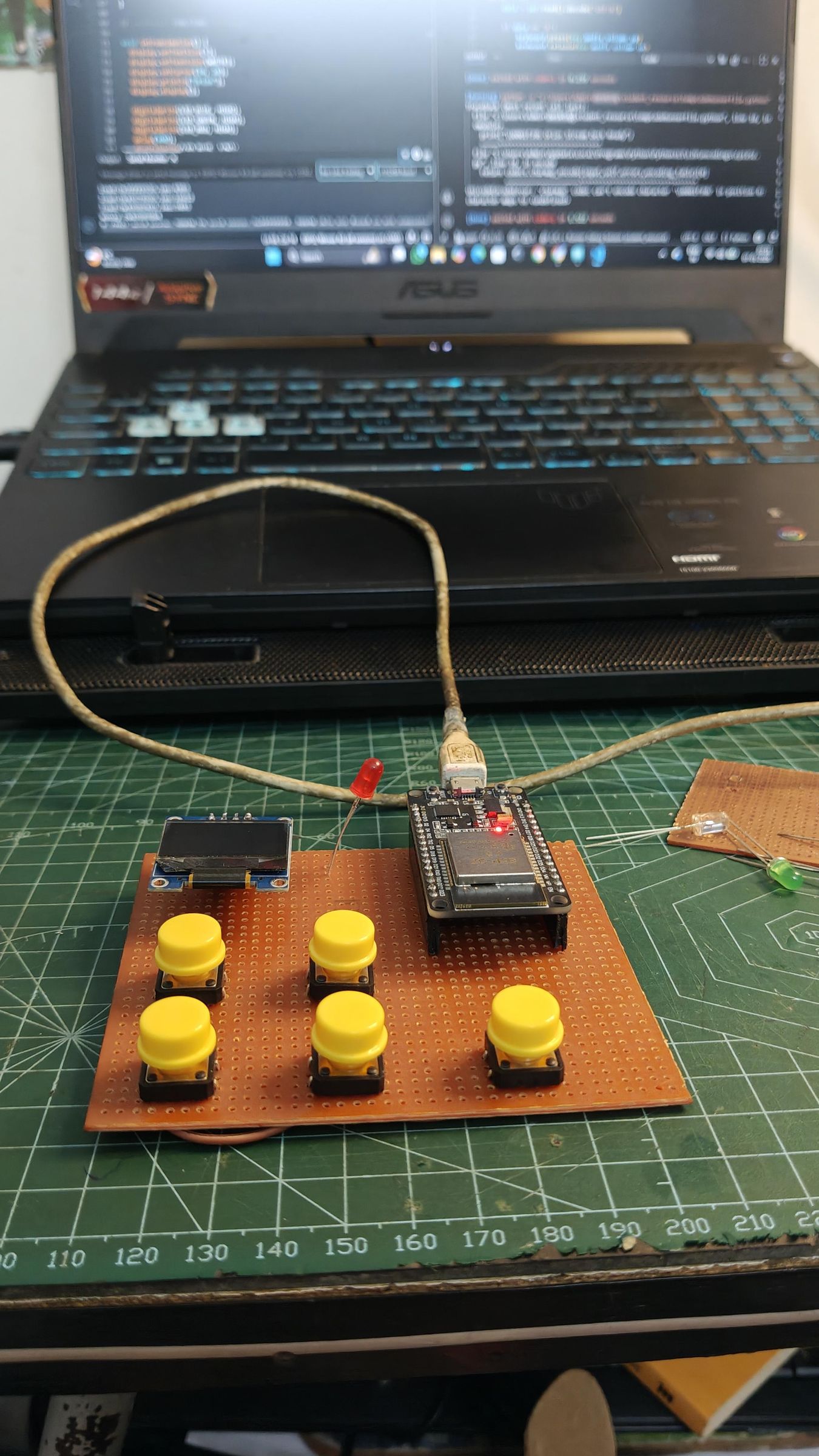
Gather all the required components such as the ESP32 board, push buttons, OLED display, LEDs, resistors, and a perf board or breadboard for assembly. Before assembling everything together, it is a good practice to test individual components. For example, check if the OLED display powers on correctly, verify that the buttons are working, and ensure the ESP32 is detected by your computer. This step helps avoid troubleshooting issues later during final assembly.
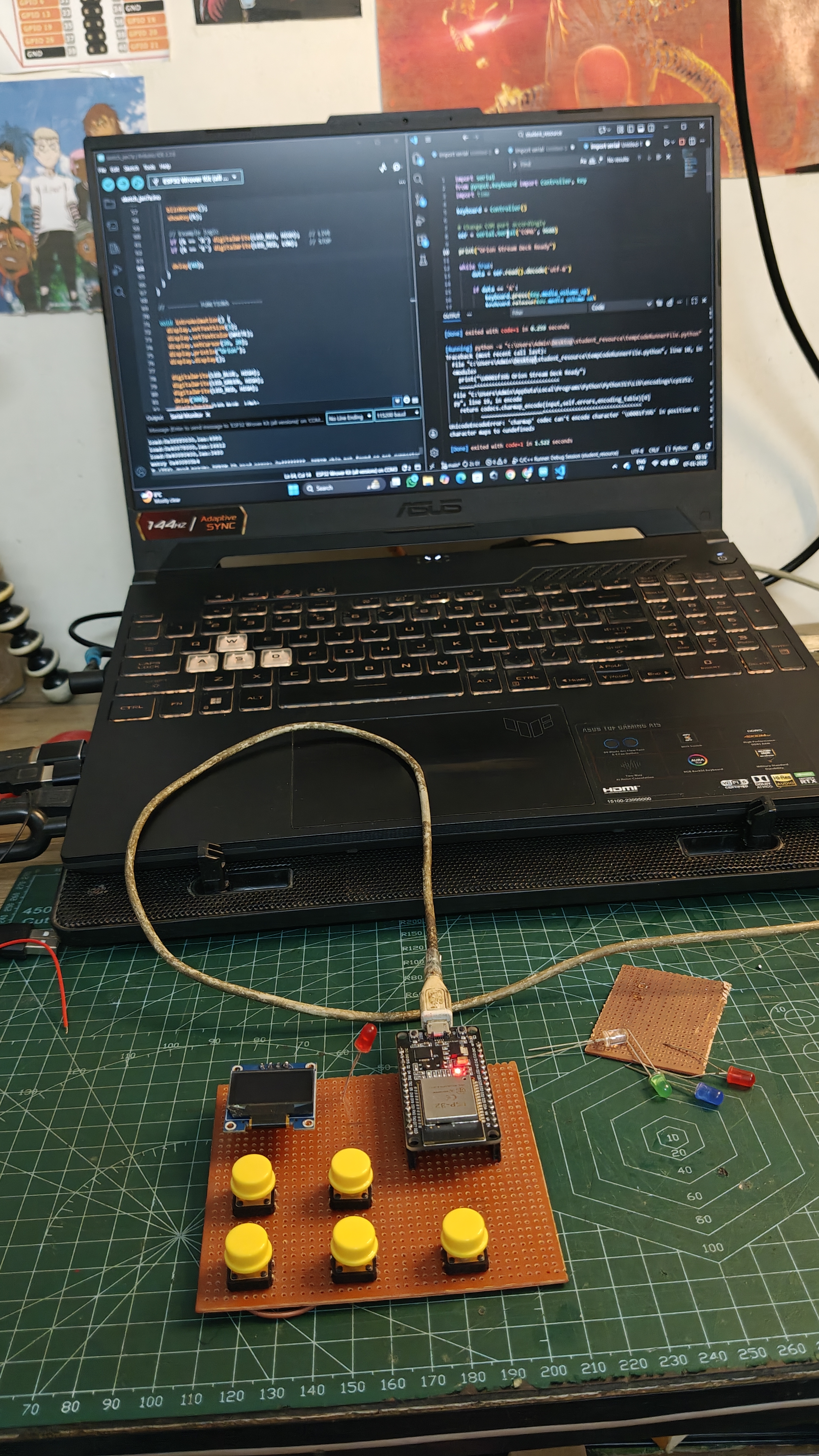
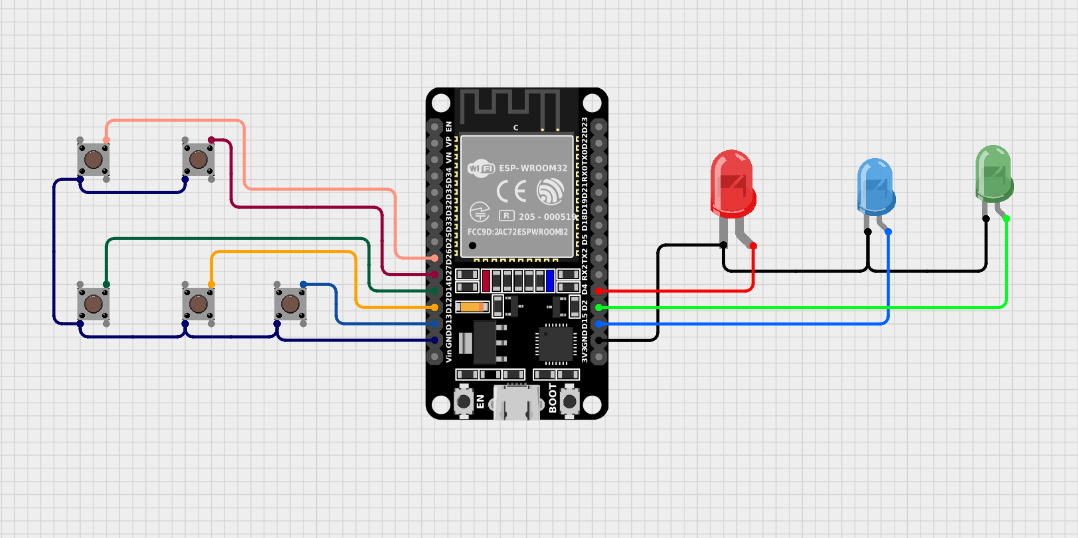
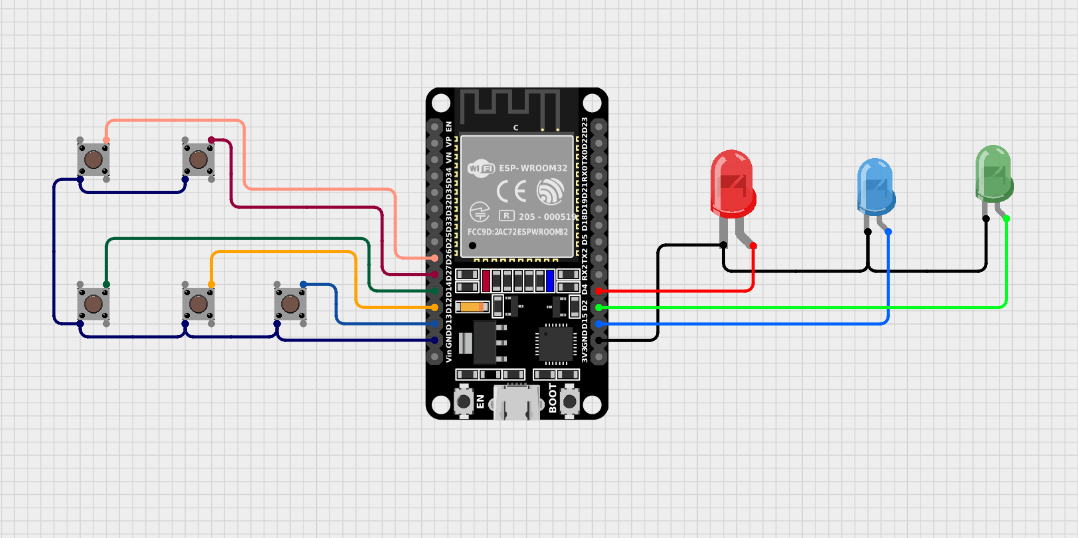
After confirming that all components are working, begin with the wiring. Each push button is connected between a GPIO pin and ground, using the ESP32’s internal pull-up resistors. This means the button will read HIGH when not pressed and LOW when pressed. The OLED display is connected using the I2C protocol, where SDA is connected to GPIO 21 and SCL to GPIO 22. The three LEDs are connected to different GPIO pins through 220Ω resistors to limit current and prevent damage. These LEDs are used to indicate different statuses such as power, Bluetooth connection, and action feedback. Once the wiring is verified on a breadboard, all components can be assembled onto a perf board for a more permanent and compact design. I soldered the components carefully onto the perf board and used small jumper wires to create neat and reliable connections between pins. This helps improve durability and gives the project a cleaner look. It is important to double-check all connections at this stage to avoid short circuits or incorrect wiring.
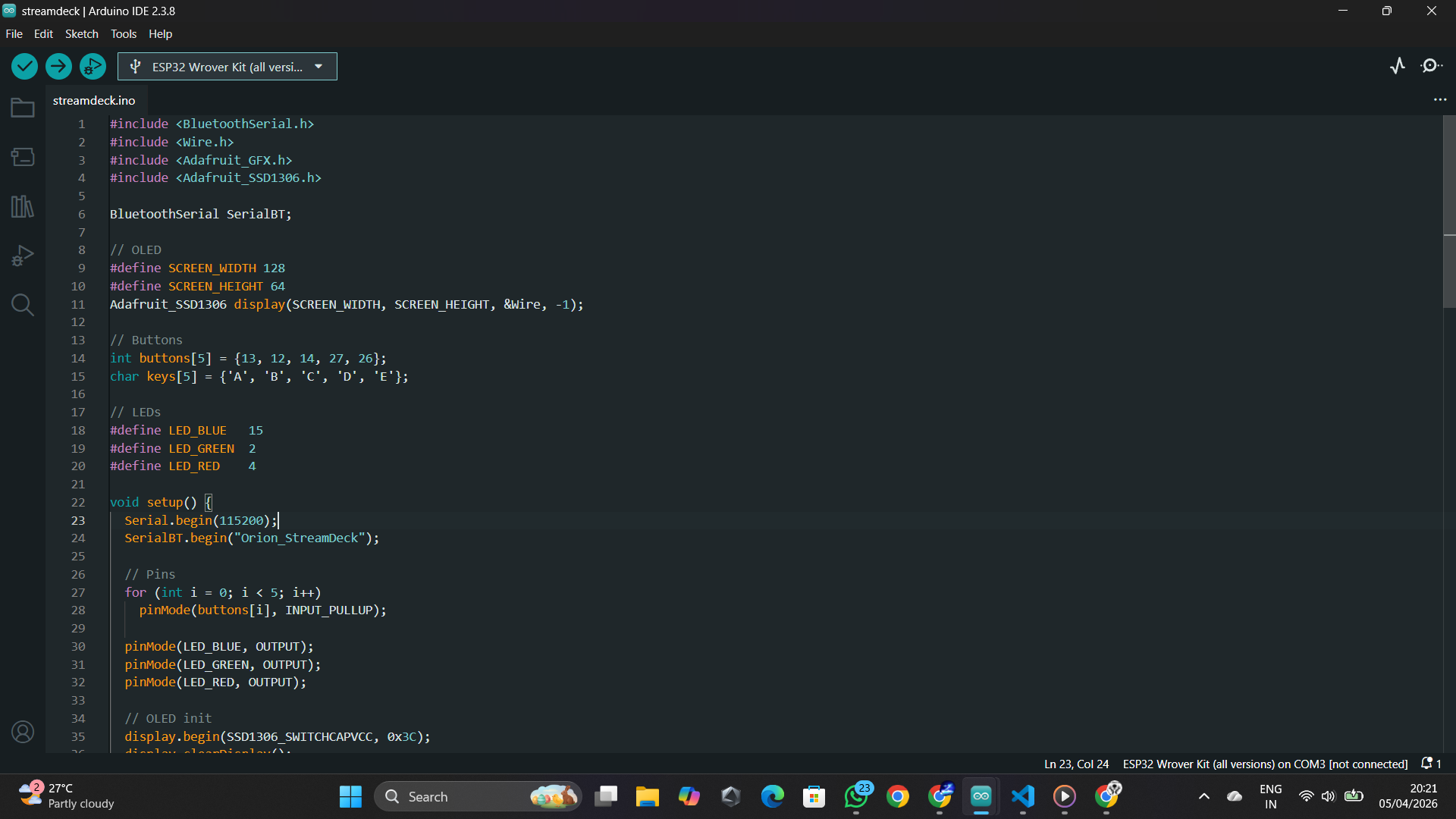
With the hardware ready, the next step is to program the ESP32. Using Arduino IDE, select the correct ESP32 board and upload the code. This code is responsible for detecting button presses, updating the OLED display, controlling LEDs, and sending specific characters (A, B, C, D, E) over Bluetooth. Each button corresponds to a different character, which will later be interpreted by the computer. After uploading, open the serial monitor if needed to verify that the ESP32 is functioning correctly. Codes : https://github.com/astrix884/DIY-ESP32-StreamDeck-.git
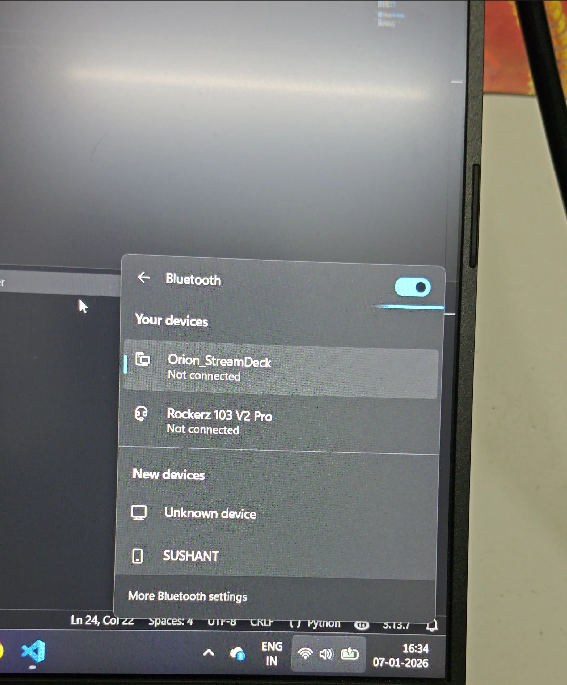
Once the code is uploaded, power the ESP32 and enable Bluetooth on your computer. The ESP32 will appear as a Bluetooth device (for example, “Orion_StreamDeck”). Pair the device with your computer, and note the COM port assigned to it. This COM port is essential because it will be used by the Python script to receive data from the ESP32. A successful connection ensures that communication between the hardware and the computer is established.
Since the standard ESP32 does not support HID (keyboard emulation), a Python script is used as a bridge between the ESP32 and the computer. Install the required libraries such as pyserial and pynput. The script reads incoming Bluetooth data from the COM port and converts it into keyboard inputs. For example, when the ESP32 sends the character ‘A’, the script can simulate a volume-up key press. Update the COM port in the script and run it. The script should remain running in the background for the system to function.
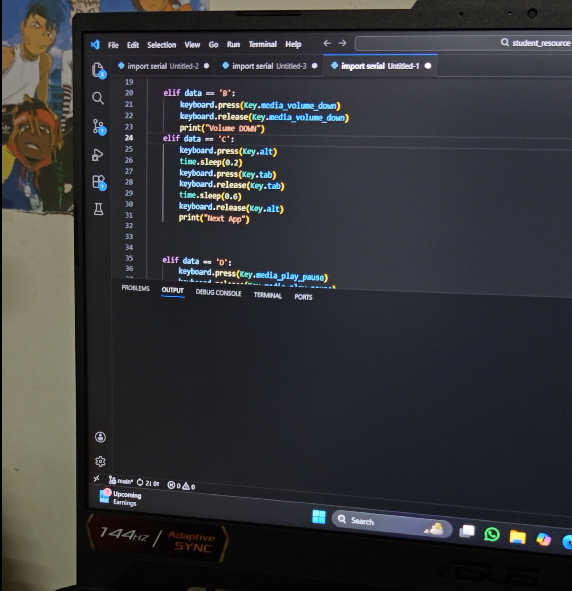
After the Python script is running, configure the actions you want each button to perform. For general system controls like volume or media playback, the script directly triggers those actions. For applications like OBS, you need to assign specific hotkeys in the software settings. For example, you can assign a function key like F6 to switch scenes in OBS, and then map that key in your Python script. This step allows you to fully customize the functionality of your stream deck.
Now it’s time to test the entire setup. Press each button and observe the behavior. The OLED display should show the action being triggered, the LEDs should provide visual feedback, and the computer should respond accordingly. For example, pressing a button may increase volume, switch applications, or change scenes in OBS. If something does not work as expected, check the wiring, Bluetooth connection, or Python script configuration.